Start here
Your invite is built in six passes. Each one saves on its own, so you can stop anywhere and come back later. Only the first three are needed to go live.
Read time · 2 min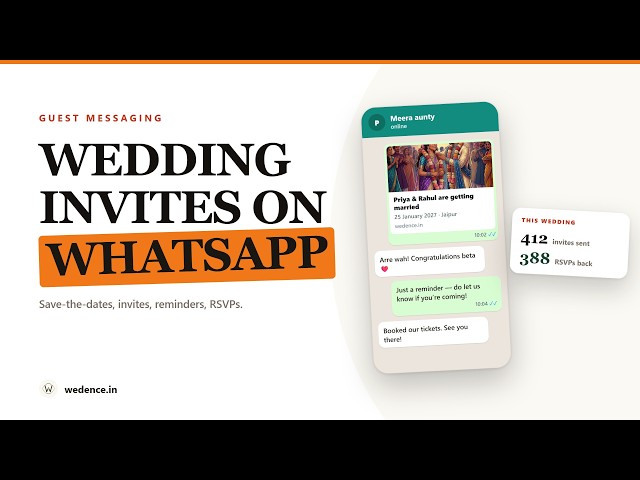
Every part of your dashboard, in the order you will use it. The chapters below that have a shorter video for just their step open with it.
All video guidesYour invite is never frozen. You can change a photo, fix a spelling, add a ceremony or even switch to a completely different design after you have sent the link to 300 people — the link stays the same and everyone sees the update instantly.
Chapters 14 to 18 are the bigger-wedding tools: Event Invites if different groups are invited to different functions, private access if the link must not travel past your list, WhatsApp messaging if you would rather not send 300 chats yourself, and People if your partner or family are helping. None of them is needed to go live.
Chapter 19 — your checklist, budget and checking guests in on the day — can wait too.
What you'll want handy
- Both names as you want them printed, and the wedding date.
- The venue's Google Maps link — the one from the Share button, not a screenshot.
- A WhatsApp number guests can call if they're confused on the day.
- 4–10 photos — one for the cover, one clear couple portrait, the rest for the gallery. (You can add these later.)
- Your ceremony list — mehendi, haldi, sangeet, wedding, reception, with dates and times.
Create your account
There are two doors in. Both end at the same place — your dashboard.
2 minDoor A — see your invite first, register after
Best if you want proof before you commit. Nothing is saved until you choose to register.
Let's make your invite.
Two names and a date is all it takes. You'll see your real invitation on the next screen.
Nothing is saved anywhere until you choose to create an account.
- 1Bride's name — first name only is fine. Full names come later.
- 2Groom's name — both are required to continue.
- 3Date — genuinely optional. Skip it if the muhurat isn't fixed; the countdown switches on the day you add it.
- 4See your invite — a real animated invitation opens with your names in it. Scroll it, then tap Save & get your link at the bottom to register and keep it.
Door B — register directly
On the account screen, tap Create account (not Log in), then choose one:
| Method | How it works | Worth knowing |
|---|---|---|
| One tap, pick your Google account, done. | Fastest. No password to remember, no email to verify. | |
| Mobile + OTP | Enter your 10-digit number, tap Get OTP, enter the 6-digit code. | Only appears if it's switched on for your account. The code arrives on WhatsApp — use its Copy code button. |
| Email + password | Name, email, password (minimum 8 characters). | You must click the verification link we email you before you can log in. |
These three are separate identities. If you register with Google and later try to log in with the same email and a password, it won't recognise you. Pick one method and stick to it — write down which one you used.
Verification email not arrived? Check spam/promotions, and look for a sender at wedence.in. If it's still missing after 5 minutes, register with Google instead — it skips verification entirely.
Find your way around
Five tabs, a short side list and one menu. Learn these and you'll never be lost.
2 minHi Priya, add wedding details
Add both names and the wedding date to unlock the design gallery.
- 1Home — your summary. Countdown, readiness score, and a single "do this next" card.
- 2Invite — where you build the invitation. Details, design, photos, sections, share link. You'll spend most of your time here. (This guide calls it the Invitation tab; the label on screen is the shorter Invite, so it fits a phone.)
- 3Guests — your guest list, RSVPs, headcounts, per-ceremony replies.
- 4WhatsApp — everything Wedence can send your guests for you. Locked until we switch it on; chapter 17.
- 5Plan — checklist and budget. Nothing to do with the invite; ignore it for now. Chapter 19.
- 6Event Invites — a separate link per guest group, showing only the ceremonies that group is invited to. Chapter 14.
- 7People — give your partner or a family member their own sign-in, with only the access you choose. Chapter 18.
- 8Private access — restrict the invitation to the numbers on your guest list. Chapter 15.
- 9Status chip — reads Setup in progress until your invite is live, then flips to App live. Quickest way to check whether guests can open your link.
- 10Plan badge — the plan this wedding is on. Tap it to see what each one includes.
- 11⋮ menu — More tools: Event Invites, People, Private access, Invitation settings, Guest blessings, Music and soundtrack, Vendor marketplace, Log out.
The five tabs pin to the bottom edge; Event Invites, People and Private access move into the ⋮ menu at the top right, because a nine-item bar does not fit a phone. Everything in this guide works identically on a phone — you never need a laptop.
The setup guide
Until your invite is live, the Invitation tab leads with a numbered card showing exactly which of the three required steps you're on. Steps unlock in order — you can't choose a design before the names and date are saved. Once all three are ticked, that card disappears and the share tools take its place.
Add your wedding details
The one form that feeds everything else — the invite, the WhatsApp preview, the page title, the map.
6 min
Design, details, photos and functions — then publish and share.
All video guidesThis form does not save as you type. Nothing is stored until you press Save wedding details at the very bottom. If you fill half of it and close the tab, it's gone. Fill a few fields, save, then carry on.
Tell us what to build
- 1Couple name — required. This is the headline of the whole invite. Write it exactly as you want it read: Priya & Rahul.
- 2Occasion — pick from the list or type your own (Wedding, Nikah, Reception, Engagement…). It sets the WhatsApp link preview text and the share wording.
- 3Name order — whose name reads first, everywhere both appear. Tap either option to see it previewed with your actual names. Changeable any time, even after the invite is live.
- 4Your WhatsApp number — where we send your setup guide and updates about your invite, and the number guests can reach for RSVP help. No promotions, no spam, never shared. Set the country code explicitly. Test numbers like 1234567890 are rejected.
- 5Venue name + location — the name is the headline (The Leela Palace), the location is the full postal address.
- 6Google map link — see below. This is the field couples most often get wrong.
- 7Save wedding details — scroll all the way down. Nothing above is stored until you press it.
Getting the Google map link right
- Open Google Maps in another tab or app.
- Search for your venue by name and select it.
- Tap Share, then Copy link.
- Paste it into the Google map link field.
A correct link starts with https://maps.app.goo.gl/ or https://www.google.com/maps/.
A screenshot, a plus-code, or a pasted address won't work as a link — guests tap it expecting directions to open.
Add this one map link here and every ceremony at the same venue can reuse it — you don't retype it per event. Only ceremonies at a different venue need their own link.
Every field, and where guests see it
| Field | What it does | Where it shows |
|---|---|---|
| Couple name | The headline pairing | Hero, page title, WhatsApp preview |
| Occasion | Names the celebration | WhatsApp preview, share message |
| Bride / Groom name | Individual first names | Hero, intros, name order |
| Name order | Which name reads first | Everywhere both names appear |
| WhatsApp number | Guest helpline | RSVP block, contact section |
| Wedding date | The date + countdown | Hero, countdown, calendar buttons |
| City / State / Country | Location context | Hero subtitle, venue block |
| Venue name | The venue headline | Venue block, event cards |
| Wedding location | Full postal address | Venue block, directions |
| Google map link | Opens directions | Every "Get directions" button |
| Welcome message | Your opening words | Invitation block |
| Notes for Wedence | Private note to our team | Never shown to guests |
Preferred colours, rituals to highlight, family wording, photo status — anything you'd say to a designer. Guests never see it. Example: "Royal pastel theme, highlight Haldi and Sangeet, final couple photos coming next week."
Choose your design
Ten finished designs. Preview as many as you like — picking one is not permanent.
4 minThe gallery unlocks once both names and the wedding date are saved. No design is selected by default — your invite has no link until you choose one.
Preview the finalized styles, then choose one to enable this wedding invite.
The ten designs
| Design | Mood | Built for |
|---|---|---|
| Shiv Parvati | Himalayan, divine | Hindu & Marathi ceremonies |
| Neel Mahal | Royal Indian, illustrated | Hindu, palace weddings |
| Rang Mahal | Rajasthani, painted city | Hindu, Rajasthan & destination |
| Kashi Dawn | Banaras, river of light | Hindu, traditional |
| Mehfil-e-Noor | Nikah, celestial | Muslim ceremonies |
| Santorini Blue | Mediterranean | Christian & Goan Catholic |
| Madras Malligai | Chennai, Tamil heritage house | South Indian & Tamil ceremonies |
| Kasavu | Kerala, one day on the backwaters | Kerala Hindu, Christian & destination |
| Bellagio | European, romantic | Destination weddings |
| Lake Como Letters | European, editorial | Destination, minimal |
| Wedding Cinema | Cinematic love story | Any tradition |
Preview on the device your guests will use — your own phone. These designs are built mobile-first, and a design that looks quiet on a laptop is often the most striking one on a phone.
Go to Invitation → Change design and pick another. Your content carries across — names, dates, events, photos, story, guests, RSVPs all stay. Only the look changes, and your invite link stays the same, so anyone who already has it sees the new design.
Add your photos
Four slots, four different jobs. Getting the second one right is what makes your WhatsApp link look expensive.
5 min- 1Main invite cover — the opening photo, full-bleed behind your names. Use a vertical (portrait) shot with empty space in the middle third; that's where the names sit.
- 2Couple preview photo — a clear, tight portrait of the two of you. This is the photo WhatsApp shows in the link preview, so it does more work than any other image on the invite.
- 3Gallery images — the scrolling gallery. 6–12 is the sweet spot. More than 20 and guests stop scrolling.
- 4Extra images — a spare library the design pulls from for decor, family and venue sections. Optional.
Photo rules that actually matter
- Upload straight from your phone. We resize and re-compress every image on upload — you do not need to shrink anything first.
- Portrait beats landscape for the cover. Your guests hold their phones upright.
- Faces near the top third. Designs crop the bottom of the cover on short screens.
- Avoid photos with text baked in — a photographer's watermark or an edited "Save the Date" graphic fights the design's own typography.
- Screenshots of photos look like screenshots. Use the original file from your gallery.
There's a second way in for the couple portrait: on the Invitation tab, the invite card on the right has an Add a couple photo / Change photo button. It uploads to the same slot — handy when you just want to swap the photo without opening the whole form.
Frame the WhatsApp card yourself
The card WhatsApp shows is a wide landscape tile, and your photo almost certainly isn't — so something gets cropped. Left alone it crops from the centre, which on a tall portrait takes the faces off the top.
- Drag the photo inside the frame until both faces sit well inside it. Arrow keys work too.
- What you see in that frame is exactly what WhatsApp shows — same shape, same crop. The invite card on the dashboard uses it as well, so you are always looking at the real thing.
- It applies to every link you send, including messages Wedence sends for you.
Add your ceremonies
Mehendi, haldi, sangeet, the wedding, the reception — each one becomes a card guests can RSVP to separately.
6 minYour ceremonies live under Guests → Manage events. Add one entry per celebration and it appears on your invite straight away — there is nothing else to save.
Ceremonies used to be edited under Invitation → Advanced invite controls. They are now in one place, next to your guest list, because the same list drives both what your invite shows and what guests can RSVP to. The old screen now points you here.
- 1Event name — what guests will call it. Mehendi, Haldi, Sangeet Night, Wedding Ceremony, Reception. This exact name appears in the RSVP form, so keep it short and unambiguous.
- 2Start / end time — type them how you'd say them: 7:00 PM, not 19:00.
- 3Dress code — optional, but it's the single most-read line on an Indian invite. Fill it.
- 4Use main wedding venue — leave it on when the ceremony is at the venue you already entered; the address and map link are reused automatically. Switch it off to type a different venue, address and map link for that one event.
- 5Guest note — a short practical line for that one function: "Parking is on the east gate", "Lunch is served from 1 PM". Separate from the description, which is where the mood goes.
- 6Add to calendar — puts a small calendar button on that ceremony's card. Guests tap it once and the event lands in their phone calendar with the venue attached.
Each ceremony in the list has a grip on its left. Drag it up or down and the new order saves itself — that is the order guests read them in and the order they appear in the RSVP form. There is no "display order" number to type any more. On a keyboard, tab to the grip and use the arrow keys.
Press Save event on the one you are editing and it is kept. There is no Save wedding details to remember at the bottom — your invite and the RSVP form both update straight away.
You will also meet it under Invitation → Update details → Invitation events. It is the same editor and the same ceremonies — edit in either and both update. Use whichever you are already in.
Every RSVP anyone gave for that function goes with it, and it cannot be undone. If a function is only uncertain or postponed, change its date rather than removing it.
Fill the deeper details
Eleven optional sections. Do none of them and your invite still works. Do three of them and it feels personal.
10 minWhat each section is for
| Section | What goes in | Worth doing? |
|---|---|---|
| Family & invitation | Full names, both sets of parents, hosting family, blessing line, invitation headline and message, display date, countdown date & time, closing blessing | Yes — this is what makes it read like a real Indian invitation rather than an event page |
| Couple introduction | A heading and a short intro for each of you | Nice for guests who only know one side |
| Story moments | Milestones with a year, title, image and description | High impact, ~15 min of writing |
| Invitation events | Your ceremonies — see chapter 06 | Yes |
| Venue & travel | Venue description, parking, nearest airport/station, directions, accommodation, hotels, transfers, rail info, travel notes | Yes if guests travel — it stops the phone calls |
| Our people | The friends and family standing beside you | Optional |
| Contact / coordinators | People guests can call or WhatsApp during the celebrations | Yes for a big wedding |
| Gifts & registry | Registry link, UPI, and a gifting note | Only if you want to |
| Social & hashtag | Your hashtag and social profiles | Fun, low effort |
| RSVP settings | Deadline, maximum guests, RSVP title and intro, contact, meal preferences, guest message | Yes — see chapter 09 |
| Guest blessings | The wishes-wall wording and visibility | Yes — guests love it |
Several fields show a grey suggestion underneath with a Use this button. Tap it to drop the suggested sentence straight in, then edit a word or two. Faster than starting from a blank box.
The three that pay off most
- Family & invitation — parents' names and the hosting line. This is the difference between "an event page" and "an invitation".
- Venue & travel — every out-of-town guest reads this, and every line you write is a call you don't take.
- Story moments — three or four moments with photos. Guests screenshot these and send them back to you.
Under Family & invitation there's a separate Countdown date & time field. Set it to the moment the first ceremony starts, not the wedding date — that's the moment guests actually need to arrive for.
Choose which sections appear
Your invite is built from stackable blocks. Turn off what doesn't apply, reorder what does.
4 minOnce the three required steps are done, an Invite controls area appears on the Invitation tab. The first banner — Customize your invite — opens the layout editor. (It's also in the ⋮ menu as Invitation settings.)
▼
▼
▼
- 1Hero is locked. It can't be hidden or moved, and nothing can move above it. Every invite opens with your names.
- 2▲ ▼ move a section up or down in the scroll order.
- 3Indented rows are modifiers — they attach to the section above rather than standing alone.
- 4The switch shows or hides a section. Off doesn't delete anything; your content is still there if you switch it back on.
Unlike the wedding details form, the layout editor saves the moment you tap. Watch for Saved ✓ Your invite updates with these blocks. No save button to hunt for.
Every block you can turn on
| Block | What guests see | Needs |
|---|---|---|
| Hero | The opening — names, first impression | Always on |
| Date reveal & countdown | Tap-to-reveal save-the-date and a live timer | Wedding date |
| Wedding card | The designed invitation card | Invitation wording |
| Families & blessings | Both families, hosts, blessing line | Family & invitation section |
| Bride & groom intro | Portraits and short intros | Couple introduction section |
| Couple story | Your story told in images | Story moments |
| Events | Ceremonies timeline | At least one event |
| Save to calendar | Calendar button on ticked ceremonies | Events + the per-event toggle |
| Photo gallery | Scrolling gallery | Gallery images |
| RSVP | The guest response form | RSVP enabled |
| Guest wishes | Live blessings wall | Guest blessings switched on |
| Venue | Destination & map | Venue + map link |
| Where to stay | Hotels & accommodation | Venue & travel section |
| Getting here | Air, rail & transfers | Venue & travel section |
| Video message | A couple video | Hero video URL |
| Music / soundtrack | Background song with a play/pause control | See chapter 09 |
| Our people | Wedding party | Our people section |
| Contact / coordinators | Guest help with phone and WhatsApp | Coordinators section |
| Dress code | What to wear | Dress code on events |
| Gift registry | Gifts, registry & UPI | Gifts section |
| Social & hashtag | Share-the-moment | Social section |
Switching on Couple story without adding any story moments gives guests an empty section. Fill the content first (chapter 07), then switch the block on.
Music, blessings & RSVP settings
Three switches that change how the invite feels and how much you learn from it.
4 minMusic / soundtrack
- The switch on the right turns background music on or off for the whole invite.
- Choose your own song opens the upload field. We compress the file automatically — upload the song you have, don't convert it first.
- Guests always get a visible play/pause control. Nobody is trapped with sound they didn't ask for.
- Leave it off if a lot of your guests will open the invite at work or in a meeting.
Guest blessings
- Guests leave wishes and comments directly on your invite.
- A wish goes live the moment it is written. There is nothing to approve — the guest who wrote it sees it on the wall, and so does everyone else.
- The banner on the Invitation tab carries the count and the way in: Read and manage wishes. The switch beside it turns the whole wall on and off.
- Turn it on early — the wall filling up is what makes people re-open the link.
Hide from invite removes a wish from the wall and keeps it here, so you can put it back with Show on invite. Delete is a real deletion behind a confirmation and cannot be undone — hide first, delete only if you mean it.
They used to. Wishes written before that changed are on the wall now too, so if a guest ever told you their message vanished, it is back — worth a look before you send your next round.
RSVP settings
| Setting | What it does |
|---|---|
| RSVP enabled | Master switch. Off = no response form at all. |
| RSVP deadline | Shown to guests as the date to reply by. |
| Maximum guests | The highest number one guest can bring. Caps the counter in the form. |
| RSVP title | The heading above the form. |
| RSVP introduction | A line or two of context before the questions. |
| Collect meal preferences | Adds a food question — All Veg / All Non Veg / All Jain / Mix. |
| Collect guest message | Lets guests leave a wish, an allergy note, or an arrival time. |
| RSVP contact / WhatsApp | Who to reach if the form confuses them. |
| External RSVP URL | Only if you're collecting replies somewhere else. Leave blank otherwise. |
Guests give an exact number, not "1 / 2 / 3+" — caterers and seating charts run off it. Set the cap to the largest family you're genuinely willing to host.
Preview and test it properly
Ten minutes here saves a group-chat correction later.
5 minYour invite link looks like wedence.in/invitation/priya-rahul. It opens in a new tab.
On a phone, it opens as a normal page — exactly what your guests will get.
The test that matters
- Send the link to yourself on WhatsApp and open it from inside WhatsApp. That's how most guests will open it, and it behaves slightly differently from a normal browser.
- Turn Wi-Fi off. Load it on mobile data. Most of your guests will.
- Hand your phone to a parent. If they can find the venue and the date without scrolling twice, you're done.
Proofread in this order
- Both names — spelling and which one reads first.
- The date, and the day of the week if your design shows it.
- Every ceremony's time. Times are the single most-corrected field.
- Tap the map link. Does it open the right venue?
- Tap through the RSVP form as if you were a guest, and submit a test reply.
- Check the gallery — no duplicates, no accidental screenshots.
After you've tested the form, open Guests and remove the test entry so it doesn't inflate your headcount.
Build your guest list
You don't have to. Replies land here on their own. But a list is what turns replies into a headcount you can trust.
6 min
Import your list, sort it by side and group, and see who has replied.
All video guides- 1Export CSV — the whole list with replies, for your caterer, decorator or a spreadsheet.
- 2Import list — paste many guests at once. Format below.
- 3Add guest — one at a time: name, phone (WhatsApp), email (optional), group.
- 4By guest / By group / Numbers / Manage events — four ways into the same data. By group sorts by side and then group and shows each group's link; Numbers is the headcount per ceremony (chapter 16); Manage events is the ceremony editor from chapter 06.
- 5Row actions — tap the row to open a guest and set their replies, or the bin to remove them. Nothing on this screen sends a message. All messaging lives on the WhatsApp tab (chapter 17), so a tap here can never message a guest by accident.
Importing a list
Tap Import list. You can choose a CSV file or paste rows straight in — and Download template gives you a spreadsheet with the columns already set up.
Four columns, in this order — Name, WhatsApp number, Side, Category:
| What to paste | Result |
|---|---|
Aarav Sharma, +91 98765 00001, Groom, Office | All four — the usual row |
Meera Iyer, +91 98765 00002, Bride | No category; add it later |
Kabir Nair | Name only — he can't be invited until you add a number |
Side is bride or groom. Category is your own label — Office, College, Delhi cousins. They are separate on purpose: someone can be on the groom's side and in the office group, and you can count either way later.
Select the cells in Excel or Google Sheets and paste them in — no need to save a file or add commas. A header row is recognised and skipped, so you can paste the whole sheet.
Before anything is saved you get a preview: how many guests are ready, the split between bride's and groom's side, every category with its count, and any line that was skipped and why. Check it — that is the moment to spot columns in the wrong order, not afterwards.
Only the name is required, but a guest with no WhatsApp number can't be invited and can't be matched to their reply automatically. The preview tells you how many are in that state.
Invites go out over WhatsApp, so a landline or a number that isn't on WhatsApp produces a guest
you can never invite. Write +91 98765 00001, not 9876500001 — a bare
10-digit number has to be guessed at, and a guessed country code sends a wedding invitation to a
stranger. If your guest is in Dubai, the UK or the US, their code is not +91.
Groups and sides
Every guest carries two independent labels, and both are yours to define.
- Category (group) — anything you type becomes one: Office, College, Delhi cousins.
- Side — bride's or groom's. Kept separate from the category so you can count each family's guests even when everyone is sorted by office and college.
To sort a list you already imported: tick the guests in By guest, then use the bar at the bottom — type a group name (new or existing) and tap Move, or set Side for all of them at once. Sorting 40 guests is a few taps, not 40 edits.
- Keep names short and consistent — Bride's side and Brides side are two different groups.
- Got one wrong? Open By group and use the pencil to rename it. Every guest and every invite link pointing at that group is updated together.
- A group exists as long as someone is in it — there is no separate list to maintain.
Seeing it all by group
The By group tab is the one place that answers both questions at once: who is in each group, and which invite that group receives. It splits by side first — bride's, groom's, and a third for everyone with no side yet, which is usually the biggest pile — then lists each side's groups.
Open a group to see its guests with their invite and reply status. Each group header shows the link that group gets, with a button to copy it. If a group has no link of its own it says so, and Make one takes you to Event Invites (chapter 14).
Guests are matched by phone number. If someone RSVPs through your invite and their number is already on your list, their reply attaches to the existing entry instead of creating a second one. Guests who reply and aren't on your list appear tagged Self-added.
Read the two pills on every guest
Two things are tracked separately: whether you reached out, and whether they answered. Most confusing screens make sense once you see they are different questions.
4 minInvite — did you reach out?
Controlled entirely by you.
- Not invited — nothing has gone to them from Wedence
- Invited — an invitation went to them from the WhatsApp tab
- Via invite — they arrived through your link without a direct invite
Response — did they answer?
Controlled entirely by them.
- No response — nothing yet
- Attending · N events — a yes, per ceremony
- Maybe — still confirming
- Declined — a regretful no
A guest can read Not invited and Attending at the same time — that's normal. Someone forwarded your link in a family group and they replied. The response is real; the invite pill just says nothing has gone to them from Wedence yet.
Where the sending happens
There is no Invite or Remind button on a guest row any more, and no "invite everyone on WhatsApp" bar above the list. That is deliberate: every message now goes out from the WhatsApp tab, where you see the exact wording and the exact list of recipients before anything leaves. Chapter 17 is that tab, start to finish.
Which means a guest is marked Invited in exactly one way: you sent them the invitation from the WhatsApp tab. A save-the-date, a reminder or an announcement does not set it — being told the date is not the same as being invited.
Sending your link by hand from your own phone (chapter 11) is a perfectly good way to invite people, but Wedence has no way to see it, so those guests keep reading Not invited. Their replies still land correctly. It is a gap in the label, not in your wedding.
Who is still owed a chase
The Awaiting reply figure at the top of the Guests tab is the one to act on. It is a subtraction and nothing more:
Has the invite is everyone you sent an invitation to plus everyone who found the invite on their own. Responded is everyone who gave any answer — yes, no or maybe. What is left is who to chase, and the same number drives the list when you tap the Awaiting reply filter. The count and the list cannot disagree with each other.
- Filter the list to Awaiting reply.
- Chase them from the WhatsApp tab with Nudge who hasn't replied — it goes to exactly these people, and skips anyone you followed up recently.
- Send it about 10 days before your RSVP deadline, not the day after you invited them.
On the Numbers tab and inside By group, an Awaiting column means something wider: not yet a firm yes or no, so it counts the maybes too. The Awaiting reply stat and filter mean total silence. Both are useful — they answer different questions.
An aunt phones; a cousin tells you at another function. Open that guest and set their answer for each ceremony yourself — it counts exactly like a reply they sent. Chapter 16 has the detail.
Send different guests a different invite
Colleagues don't need to see the family-only mehendi. One wedding, several links — each with its own functions, its own sections and its own date.
6 min
One link per group, showing only the functions they are invited to.
All video guidesEvent Invites is its own section in the left menu — on a phone it sits in the ⋮ menu under More tools. It used to be a tab inside Guests; it moved out because it is about your invitation, not your list.
Your main link shows every ceremony. An invite link is a second address for the same invite that shows only the ceremonies you choose — so the office sees the reception, and the family sees everything.
Event-wise invite links are a paid-plan feature. If this section is locked in your dashboard, open Plans to compare access.
| Link | What that guest sees |
|---|---|
/invitation/priya-rahul | All seven ceremonies — your default link |
/invitation/priya-rahul-office | Only the reception |
To make one: tap New link and name it (Office). The name is only for you, but it becomes part of the web address. Then work down four things.
1 · What does this link say?
| Mode | What that guest gets |
|---|---|
| The full invitation | The functions you choose, with times, venue, travel and an RSVP. |
| Just a save the date | Your names, the day and a countdown. No schedule, no venue, no RSVP — for people you want to tell early, months before the details exist. |
Switching modes resets the sections below to that mode's sensible starting set, so choose this first rather than last.
2 · Which functions does this group see?
Every ceremony starts ticked — you are usually removing one or two rather than building the list up. Untick the ones that group is not invited to. (A save-the-date has no functions at all, so this step disappears when you pick that mode.)
3 · The date this link prints
A two-day wedding sends one link to the guests who are there for both days and another to the day-two-only guests. They should not print the same headline date, so each link carries its own.
- From this link's functions is the default and usually the right answer. It works the date out from the ceremonies this link actually carries, and it re-works it if you later move one — so it cannot go stale.
- Something else lets you type it in your own words: a range like 23 – 24 January 2027, or anything you would print on paper.
- Countdown ends is separate and deliberately not worked out for you — you decide what this group counts down to. Leave it blank to use your wedding's own countdown.
4 · Sections this link shows
Under Sections this link shows you can turn individual sections on or off for this link alone — the same list as chapter 08, applied to one group. It starts from the mode you picked and, for a full invitation, from your own invite's sections and order, so a link never reshuffles your wedding behind your back.
Your names always show. A section with nothing in it stays hidden either way.
Let it pick the link for you
While making the link you can say which guest groups it is for. After that, when you invite someone from that group, Wedence sends their link automatically and lists only their ceremonies in the message. You choose once, not once per guest.
Guests who arrive through that link are also filed into that group on their own, so your list sorts itself as replies come in.
A link that doesn't ask for a reply
Turn RSVP off in Sections this link shows and that link shows the whole invite — story, venue, schedule — with no reply form. It is for people you want to keep informed rather than count: distant relatives, courtesy invitations, anyone you will never chase for a headcount. They can still leave a blessing. The link's row in the list reads No RSVP so you can see at a glance which ones ask and which only tell.
A separate link means a guest isn't shown ceremonies they aren't invited to. It doesn't lock anything — your main link still exists, and anything forwarded can be opened. Use it to avoid an awkward invitation, not to keep a secret.
Guests already have the old address in their chats, so the link itself never moves. Rename it freely — only you see the name.
Keep the invite to your guest list
A link travels. This one asks for a mobile number at the door and lets through only the numbers on your list.
5 min
What a guest sees, the one-time codes, and what to check before you switch it on.
All video guidesPrivate access is its own section in the left menu — on a phone it sits in the ⋮ menu under More tools.
Normally anyone holding your link can open your invitation, and links travel — one guest forwards it into a family group and it keeps going from there. With private access on, your link asks for a mobile number first. A code goes to that phone, and only numbers on your guest list get through.
A password forwards with the link it was meant to protect — whoever passes on the link passes on the password in the same message. A mobile number can't be passed on, because the code lands on that phone.
Priya & Rahul
The couple has kept this invitation to their guest list. Enter your mobile number to open it.
- 1Continue — we check the number against your guest list before anything is sent. If it's on the list a code goes to that phone; once they enter it, that phone stays signed in until after the wedding, so they are never asked again.
- 2I have a code from the couple — the way back in for someone your list missed. You issue that code yourself; see below.
A number that isn't on your list
They get one honest sentence and nothing else: "This is a private celebration, and we couldn't find that number on the guest list. If that seems wrong, do check with the couple."
There is deliberately no form for them to fill in and no queue of requests waiting for you. A queue nobody is watching locks a guest out just as firmly while looking as though it doesn't — and nobody is going to work through a request list on the morning of their wedding.
In the Private access section, search your guest by name or number and tap Get a code. You get six digits to read down the phone. It works once and expires in 30 minutes. It is per guest, never a single wedding-wide PIN — a shared PIN would forward exactly like the link.
Two things to check before you switch it on
Today, someone who opens your link and replies without being on your list is added automatically — on most weddings that is where the largest single part of the guest list comes from. Behind the gate that door is closed. Your list has to be right first.
Not "not verified yet" — locked out, permanently, with nothing on screen to explain it. The Private access section counts these for you at the top. Get that number to zero, or plan to read those guests a code.
Signing a device out
Verified devices lists everyone who has opened your invitation, with their group and when they last looked. Sign out ends that device's access; they can verify again with their own number if they should still be in. A guest can be signed in on a few devices at once — their phone, a tablet, a parent's phone — and the oldest quietly drops off, so nobody is ever told they have run out of devices.
It stops a forwarded link from working on its own, which is what forwarding actually is. It cannot stop a guest who is already in from showing someone their screen or reading their code aloud. The promise worth making is the accurate one: only guests whose mobile numbers you have added can independently open your wedding website.
One visible side effect: a private wedding gives up its personalised WhatsApp link card. Your names still show, but the photo and date come off it — a chat preview reaches people who never tapped the link.
Private access is not part of any plan and there is no toggle in your dashboard, because it changes what every one of your guests sees. Until it is on, the section shows what it does and a way to start that conversation.
Your numbers, by group and by side
The headcount a caterer asks for, split the two ways families actually think about it.
3 minTwo tables, the same shape. One row per group, one row per side, a column for every ceremony, and confirmed heads in each cell — not how many people replied, but how many are actually coming. That is the number a caterer and a venue ask for.
Free includes your guest contact list and overall RSVP counts. Pro, Signature and Concierge add named RSVP responses, per-event filters, meal details and exports. The same rule applies to every wedding, regardless of when the account was created. The locked example in the dashboard is only an illustration; it never displays hidden names or answers from your wedding.
The Awaiting column is the one to act on. 95 attending is a fact; 18 never replied is today's work.
Meals
Tap Show meals for a second table splitting those heads into Veg, Non-veg, Jain, Mix and No preference — only the ones your guests actually chose.
Send it to your caterer
Export downloads both tables as a spreadsheet. That's the summary to forward — the guest-list export under By guest is the full contact list, which your caterer doesn't need.
Guests in groups like Office or College start with no side, and show under Side not set. Tick them in By guest and set the side in the bar at the bottom — a few taps for the whole list.
Recording a reply yourself
Plenty of RSVPs never go through the invite — an aunt phones, a cousin tells you at another function, someone's number was wrong. Open any guest in By guest and set their reply for each ceremony yourself: Yes, Maybe, No, plus the headcount and meal. It counts exactly like a reply they sent themselves.
The fourth option, —, clears a reply and puts them back to awaiting. That is different from No: one means you haven't heard, the other means they told you they can't come.
Let Wedence send the messages
Chapter 11 goes out from your own phone, one chat at a time. This is the version where Wedence does the sending — and the only place in the product that sends anything.
5 min
The save-the-date, the invitation, and chasing the people who never replied.
All video guidesAutomated messaging is switched off by default for every wedding. Until it is switched on you will see a locked panel where the tools would be — that is normal, not a fault.
WhatsApp is its own tab — in the left menu on a computer, in the bar along the bottom on a phone. Everything Wedence can send your guests lives there.
Asking for it
Guest messaging is off for every wedding until it is switched on, so the first time you open the tab you will see a locked panel listing what it does, with one way forward: See plans and pricing. It comes with Pro and above, and there is a second link, See how it works, if you want the long version before deciding.
These messages go out over a shared WhatsApp number. If one wedding's guests mark it as spam, delivery gets worse for every other couple using it — so we turn it on wedding by wedding rather than leaving it open. Asking takes one tap.
What you’ve sent
Once messages start going out, the bottom of the tab lists every send: what it was, the date, how many guests it reached, and whether anything failed. One row per send, not per guest — a reminder to 200 people is one line.
That is the place to check before sending again, so nobody gets the same message twice.
Wedence can run the whole WhatsApp conversation with your guests for you. It is off by default for every wedding.
- 1See plans and pricing — the one way forward, and it records that you asked, so we know which feature brought you there.
- 2See how it works — opens a page explaining the whole thing in detail.
Two things then send with no action from you
- Invitations — go out on their own.
- RSVP confirmations — the moment a guest submits the form they get a WhatsApp confirmation carrying a short reference like
WD-4A2C1they can quote back to you.
Five things you send, when you decide to
Your photo card, the details and a link to RSVP.
UnlimitedMonths early: your names and the day, nothing else.
Its own allowanceA gentle reminder with your RSVP link.
2 of 3 leftAsk them to confirm.
2 of 3 leftOne line — a timing change, a travel note.
Unlocks on your wedding day| Card | What it sends | Allowance |
|---|---|---|
| Send your invitation | Your photo card, the details, and a link to RSVP | Sized by your plan — 500 guests on Pro, more above it |
| Send a save the date | Your names and the day, months before the details exist. Needs your invitation published first, because the message is the link to it | Its own allowance, kept apart from the invitation |
| Nudge who hasn’t replied | A gentle reminder carrying your RSVP link | 3 rounds, at least 15 days apart |
| Follow up on “maybe” | Asks them to confirm — they can reopen the invite and change the answer | Shares the same 3 rounds |
| Send an announcement | One line to your guests — a timing change, a travel note | 3 before the wedding day, 5 on the day |
It spends its own allowance and leaves the Invited pill alone, on purpose. If it counted, everyone who got one would arrive in the invitation list already ticked off — and you could never send the real invitation to the people who most need it.
Three rounds sent before lunch reads to a guest as one person asking three times in a morning — exactly the behaviour that gets a WhatsApp number blocked. So rounds sit at least 15 days apart, which is also roughly how long people take to answer. The card tells you the day the next one unlocks.
Deliberately kept apart from the before-the-day ones, so you can’t arrive at your wedding morning having spent every announcement on venue changes the month before. The day allowance unlocks on the day.
Tell us. Allowances can be topped up for your wedding, and a round that went to the wrong people can be given back to you rather than written off. Neither is something to plan around — but neither is a wall you are stuck behind on the week of your wedding.
Per-ceremony messages
Below the cards, Event reminders lists your ceremonies with three buttons each:
- Reminder — goes only to the guests who said yes to that ceremony.
- Details changed — for when one function moves.
- Travel details — directions and transfers for that function.
One of each, per ceremony — a four-function wedding gets four of each. Once sent, the button stays on screen reading “Reminder sent” rather than disappearing, so you can see it went.
With no events added the whole section reads “Add events to your wedding first.” Go back to chapter 06 and add them.
Narrowing who gets it
The review sheet has three controls above the recipient list, and each one scopes the next:
| Control | What it does |
|---|---|
| Invite link | Which invitation this send carries — your main one, or one of your Event Invites (chapter 14). Picking a per-group link also pre-sets the group filter to the groups that link was made for. Only messages that actually carry a link offer this. |
| Side | Everyone, bride’s, groom’s — or “no side”, which only appears when someone is in it. Each chip carries its own count. |
| Groups | The groups that actually exist among the guests left after the side filter — so you are never offered “Office” on a side that has nobody from the office in it. |
The button sends exactly who is visible and ticked. So if you select everyone on the bride’s side and then narrow to one group, only that group receives it — the ticks you can no longer see do not come along. The number on the send button is always the number of people who will get the message.
The message quotes the link you chose in the sheet. Change it after reading the preview and read the preview again — approving one link and sending another is the one mistake here that reaches guests.
Nothing goes out in one click
- Tap a card. A sheet opens showing the full list of who will receive it.
- Narrow it with the three controls above, and untick anyone else you want to leave out.
- For announcements and follow-ups, type your own line — 200 characters, and it must be a single line. Pressing Enter will not make a new one; WhatsApp’s approved message formats reject line breaks.
- Send. You are told how many it reached.
“The baraat now leaves at 6:30 PM, not 6:00.” That is the whole job. No greeting, no sign-off — guests already know who it is from.
Which one do I use?
| If this is true | Use this |
|---|---|
| The date is fixed but nothing else is | Send a save the date |
| Nobody has the invite yet | Send your invitation |
| Invited, and still silent | Nudge who hasn’t replied |
| They answered “maybe” | Follow up on “maybe” |
| One ceremony has moved | Details changed, on that ceremony |
| Something changed for everyone | Send an announcement |
| A function is tomorrow | Reminder, on that ceremony |
Let your partner and family help
Their own sign-in, and only the parts of your wedding you choose to hand over.
4 min
Their own sign-in, and exactly what each person can see.
All video guidesOne person doing all of this alone is how details get missed. People gives your partner, a sibling or a cousin their own way in — no shared password, no forwarding screenshots, and no giving away the whole account to get one job done.
| Who you're adding | What they get |
|---|---|
| My partner shown as Co-owner | Everything you can do. For the two people getting married. |
| Someone helping out shown as Collaborator | Only what you tick. For a sibling chasing RSVPs or an aunt keeping the guest list tidy. |
Choosing what a helper can touch
For a collaborator you tick permissions in four groups. Sensible defaults are pre-ticked — they can see the invitation and work the guest list, and nothing else.
| Group | What's in it | On by default |
|---|---|---|
| Invitation | See it · Edit design & details · Publish it | See it only |
| Guests | See the list · Add & edit guests · Track RSVPs · Send WhatsApp invites · Moderate blessings | All but the last two |
| Planning | Checklist & tasks · See the budget · Edit the budget | Nothing |
| Account | Invite & manage people · Delete records | Nothing |
Send WhatsApp invites spends your message allowance — a well-meaning helper can spend real money in an afternoon. See the budget is the setting most likely to cause an actual family argument if it defaults wrong. Both are off unless you turn them on.
Handing over the sign-in
- Type their name and their WhatsApp number, with the country code.
- For a helper, a password is suggested — keep it or type one you can dictate over the phone. They can change it once they're in.
- Tap Create sign-in. A username and password appear.
- Tap Send on WhatsApp to message it to them with the instructions already written, or Copy message for another channel.
There is no new password — they sign in the way they always do, and your wedding simply appears in the workspace picker at the top of their dashboard alongside their own.
A banner reading Helping out, and only the sections you granted. Anything they cannot use is not shown as a locked screen — it is simply not there. Deleting records is owner-only, so a greyed-out bin icon means exactly that.
Extra sign-ins come with the paid plans. If this section is locked in your dashboard, open Plans to compare access.
Your checklist, budget and the wedding day
Nothing here touches the invite. It is where the rest of the wedding gets organised — and, on the day, where your team checks guests in.
3 min
What is due next, and where the money has actually gone.
All video guidesThe checklist
- It knows your wedding date, so it can tell you what is due next rather than handing you one long list.
- Add your own tasks with a deadline — the tailor’s final fitting, the pandit’s muhurat call, whatever your family always forgets.
The budget
- It starts filled in with the rows an Indian wedding usually needs, amounts left blank. Delete what doesn’t apply rather than typing from nothing.
- Planned and spent sit side by side, so the gap shows up while there is still time to do something about it.
If your partner, a parent or your planner helps (chapter 18), you choose whether they can see the budget, edit it, or neither. Seeing the budget is the one most families want to think about before granting.
On the day: checking guests in

The Wedding Pass, the scanner, and one tap per guest.
All video guidesEvery guest can carry a Wedding Pass — a QR code on their phone with the functions they are attending. If Wedence sends your WhatsApp messages (chapter 17), a guest who confirms they’re coming receives their pass in the confirmation.
- Any phone works. Nothing to install — open the Scan tab and allow the camera.
- Pick a station: Arrival, Room desk, Welcome kits or Gifts. Each one shows only its own buttons, so the person at the gate sees one thing to tap.
- No pass? Find the guest by name instead.
- Recent activity shows who checked in whom, and when — useful when two cousins are both sure they handed over the same welcome kit.
The people scanning on the day are usually family or venue staff, not you. Add them under People (chapter 18) so they check guests in from their own phone, without your password.
What your guests see
The whole guest journey, so you know what you're sending.
3 minThe RSVP form, question by question
&
Rahul 14 · 12 · 2026 RSVP
The invite opens
Per-ceremony, not all-or-nothing
Exact count, then details
- How would you like to RSVP? — Joyfully · Maybe · Regretfully decline.
- Which celebrations will you join? — every ceremony you added, ticked individually. Yes to the reception and no to the mehendi is a normal, expected answer.
- How many guests? — an exact number, capped by your Maximum guests setting.
- Their details — name, phone (WhatsApp), email, and food preference if you switched that on.
- A message — wish, blessing, allergy or arrival note, if you switched that on.
It's how their reply is matched to the right person on your guest list, and how their confirmation reaches them. Without it, they show up as a separate Self-added entry.
There is one step before all of this: your link opens on a short screen with your names and your photo, asking for a mobile number. Guests on your list get a code, enter it once, and stay signed in on that phone until after the wedding — they never see it again. Guests who are not on your list stop there. Chapter 15 covers what that means for your list.
Fix-it list
The things couples actually get stuck on, and the fix for each.
4 minI don't have an invite link yet
The link only appears once all three required steps are done: both names + the wedding date saved, and a design selected.
Check the status chip in the top bar. If it says Setup in progress, open the Invitation tab and look at the numbered setup card — it names the exact step you're missing.
I made changes but the invite still looks the same
Almost always one of these three:
- You didn't press Save wedding details at the bottom of the form.
- The section is switched off in Customize your invite (chapter 08).
- Your browser is showing a cached page — pull down to refresh, or close the tab and open the link again.
The WhatsApp preview shows no photo, or the wrong one
First check the Couple preview photo is actually set (chapter 05) — that's the image the card uses.
If it is set and the card is still wrong, WhatsApp has cached the old version against your link. It clears on its own. To check sooner, paste the link with ?v=2 on the end in a test chat — that counts as a different address and forces a fresh card.
The design gallery is greyed out
Designs unlock after the essential details are saved — both names and the wedding date. Fill those three fields, press Save wedding details, then return to the gallery.
A ceremony is missing from the RSVP form
The RSVP form lists exactly the ceremonies in your event list, and the two cannot drift apart any more — if it is missing from the form it is missing from the list. Add it (chapter 06) and reload the invite.
If the guest is holding an Event Invite link rather than your main one, that is working as intended: that link only offers the functions its group is invited to (chapter 14).
The Invite and Remind buttons have gone from my guest list
They were removed on purpose. Every message now goes out from the WhatsApp tab, where you see the wording and the full recipient list before anything sends — so no tap on a guest row can message someone by accident. Chapter 17.
You can still send your link by hand from your own WhatsApp at any time (chapter 11); Wedence just won't know about it, so those guests keep reading Not invited.
A guest says their wish disappeared from the invite
Wishes now publish the moment they are written, so this should not happen. If it was written a while ago, it may be from when wishes waited for approval — those are all live again. Check Invitation → Guest blessings → Read and manage wishes: if it shows as hidden, Show on invite puts it straight back.
A guest can't get past the mobile number screen
That is private access (chapter 15), and it means their number isn't on your list, or is on it in a different form. Check the number you have for them — the country code is the usual culprit.
To let them in right now, open Private access, search for them and tap Get a code. Read the six digits down the phone; it works once, within 30 minutes. Then fix the number on their guest entry so it doesn't happen again.
My photos look blurry or take ages to load
- Upload the original file, not a screenshot or a re-shared WhatsApp copy — WhatsApp strips quality out every time an image passes through it.
- Very wide landscape photos get cropped hard on a phone. Portrait crops survive better.
- You don't need to resize anything yourself; every upload is optimised automatically.
Music doesn't play for guests
Phones block sound until the person touches the screen — that's the phone's rule, not ours. The music control is always visible, so guests can start it themselves. It's expected behaviour, not a fault.
A guest replied but I can't find them
Search their phone number rather than their name — a guest may have typed their name differently from how you saved it. If they weren't on your list at all, they'll be there tagged Self-added.
I can't remove a guest
Deleting records needs owner access on the account. If the delete icon is greyed out, you're signed in as someone without that permission — use the account that created the wedding.
Can I use my own domain?
Your invite lives at wedence.in/invitation/your-names. A personal domain — priyaandrahul.com, opening straight onto your invitation — comes with Concierge, and we set it up for you.
Once it is on, every link Wedence hands out uses it: the share buttons, the copy-link button, and any message we send your guests. Your Event Invite links keep their path on your own domain, so a per-group link still shows only that group's functions.
Can I change the design after sending the link to everyone?
Yes. Invitation → Change design. All your content moves across and the link stays identical, so everyone who already has it simply sees the new design next time they open it.
Before you send it to 300 people
Ten minutes. Work down the list.
2 min- Both names spelled correctlyAnd the right one reads first — check the Name order setting.
- The wedding date is rightIncluding the year. It happens.
- Every ceremony has a date, a start time and a venueTimes are the most-corrected field on any invite.
- The map link opens the correct venueTap it yourself. Don't assume.
- The WhatsApp helpline number worksWith the country code, and on a phone someone actually answers.
- A couple preview photo is setThis is the photo WhatsApp shows in the link card.
- You opened the link inside WhatsApp on your own phoneOn mobile data, not Wi-Fi.
- You submitted a test RSVP — and then deleted itConfirms the form works and keeps your headcount honest.
- Empty sections are switched offNo blank "Our story" with nothing in it.
- Every guest has a WhatsApp number with its country codeA guest without one can't be messaged — and if private access is on, can't open the invite at all.
- If you made Event Invite links, you opened each oneCheck it shows the right functions and the right date before that group gets it.
- Someone else has read itA parent or a sibling. They catch what you've stopped seeing.
Start with ten people you trust — close family and a couple of friends. Give it an hour, fix anything they flag, then send the rest. Your link doesn't change, so the first ten see the fixes too.